
Step-by-Step Installation Guide
Follow this comprehensive tutorial to install DroidDeck, configure your Android device, fix Android 12 child process restrictions, and launch Steam Big Picture mode.
Pre-Flight Checklist: Before You Begin
Download and Sideload the DroidDeck APK
Download the latest official package directly from our Download Hub. When prompted by your browser or file manager:
- Tap the downloaded
app-release.apkfile in your downloads folder. - If Android displays "For your security, your phone is not allowed to install unknown apps", tap Settings and enable Allow from this source.
- Tap Install to complete the APK setup.
Disable Child Process Restrictions ("Phantom Killer")
Android 12, 13, 14, and 15 enforce a background process limit called the Phantom Process Killer. Because Steam Big Picture and gamescope spawn several background threads, Android will forcefully kill Steam unless this limit is adjusted.
Method A: Through Developer Options (Recommended)
- Open Android Settings → About Phone.
- Tap Build Number 7 times until you see "You are now a developer!"
- Return to Settings → System → Developer Options.
- Scroll down to the Apps section and toggle off Restrict child processes.
Method B: Through ADB Shell Command (Permanent)
If your manufacturer hides the "Restrict child processes" toggle, connect your phone to a PC or use Shizuku/Termux and run:
adb shell device_config put activity_manager max_phantom_processes 2147483647
Initialize the Linux Runtime & Audio Sinks
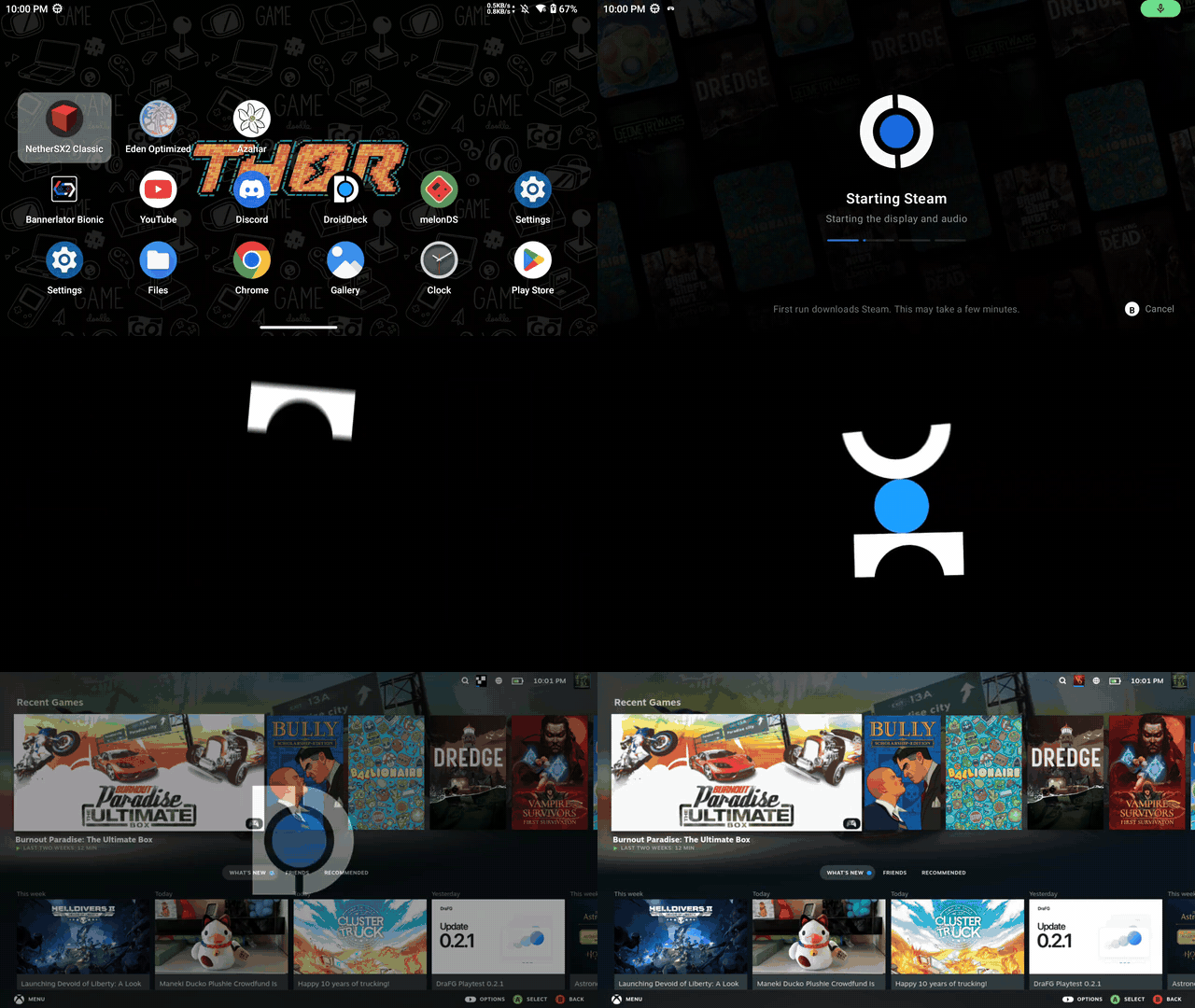
Launch the DroidDeck application on your Android home screen:
- On the main screen, tap Install Runtime. DroidDeck will download the verified 3 GB rootfs environment containing Turnip drivers, gamescope, and PulseAudio 13.0 audio sinks.
- Wait for the extraction to finish. A green checkmark will appear confirming that the compositor and audio sinks are ready.
- (Optional) Tap Desktop & Apps if you wish to download the 1.1 GB package for the LXQt desktop, Firefox, and emulators.
Launch into Steam Big Picture & Sign In
Tap the large Play button in DroidDeck:
- On first boot, the app connects directly to Valve's official distribution servers to fetch the native ARM64 Steam client files. No Valve software is bundled in the DroidDeck APK.
- The gamescope compositor will launch in full-screen 16:9 mode.
- Scan the QR code with your official Steam Mobile app or enter your Steam account credentials to sign in.
Enable Proton ARM64 & Install Your PC Games
You are now in native Steam Big Picture mode on your Android device:
- Navigate to your Library using your handheld controls or on-screen touch trackpad.
- Select a compatible PC game (such as Hollow Knight, Dead Cells, FlatOut, or Fallout: New Vegas).
- Tap Install. Steam will download the game assets and automatically fetch Valve's ARM64 Proton build.
- Press Play to launch. Gamescope handles resolution scaling while Proton executes the Windows binaries.
Diagnosing Problems & Checking Session Logs
If you encounter unexpected closures or audio anomalies, DroidDeck writes detailed session logs directly to your device storage:
You can inspect this log in any Android file manager. If you discover a bug, please copy the log and submit an issue on the official DroidDeck GitHub Issue Tracker.